
STEP 1: Install Wine in Linux
The easiest way to download and install Wine in Linux is to use your distribution sotfware package manager.
For example, in Debian based distributions (Ubuntu, Linux Mint, Linux Lite, etc) you can open a Terminal and type:
Once installed, you can check the Wine version by typing in the Linux Terminal:
For example, in Debian based distributions (Ubuntu, Linux Mint, Linux Lite, etc) you can open a Terminal and type:
$ sudo apt install wineIf your distribution doesn't include Wine in its repositories you will need to look on the web for specific instructions on how to install Wine in your Linux distro. If you want to install the latest version of Wine follow the guidance from the official web page: wiki.winehq.org/Download.
Once installed, you can check the Wine version by typing in the Linux Terminal:
$ wine --versionYou can initialize the Wine environment by launching the first Windows program (Notepad, for example):
$ wine notepad.exe
In its first execution, Wine will create a hidden folder (.wine) in your Linux user home folder containing a fake C: drive where your Windows applications will be installed, as well as registry files similar to those used in Windows.
STEP 2: Install MiniReminder using Wine
Download the latest version of the program from www.minireminder.com and install it using Wine.
For example, if you downloaded the English version of MiniReminder into your Downloads folder you could type in the Terminal:
For example, if you downloaded the English version of MiniReminder into your Downloads folder you could type in the Terminal:
$ cd ~/Downloads
$ wine MiniReminder141en.exe
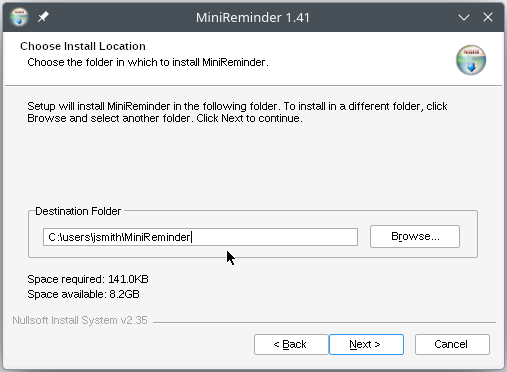
and follow the MiniReminder installation instructions, as usual:
MiniReminder expects its data files ("minireminder.events" and "minireminder.prefs") in the same folder where the program is installed.
But if you install MiniReminder in "C:\Program Files\" then Wine will automatically map this Windows system folder
to your Linux user home folder and put the MiniReminder data files there (because user's data files are not allowed in the "C:\Program Files\" folder).
If you don't want to populate your Linux home folder with MiniReminder data files install the program in the "C:\Users\<your_username>\" folder, instead.
If you don't want to populate your Linux home folder with MiniReminder data files install the program in the "C:\Users\<your_username>\" folder, instead.
STEP 3: Make a Linux desktop shorcut to launch MiniReminder
In Linux, program launchers are usually text files with the ".desktop" extension
that follow the XDG Destop Entry Specification. They can specify how to launch a program
on a Desktop Environment like GNOME, KDE Plasma, Xfce, Cinnamon, etc.
The MiniReminder Windows installer automatically creates a Windows Desktop shorcut (a ".lnk" file) to launch the program. But when the same installer goes through Wine it creates two Desktop shortcuts: the Windows ".lnk" file and an extra Linux ".desktop" file (the ".desktop" extension is hidden by your Desktop Environment):
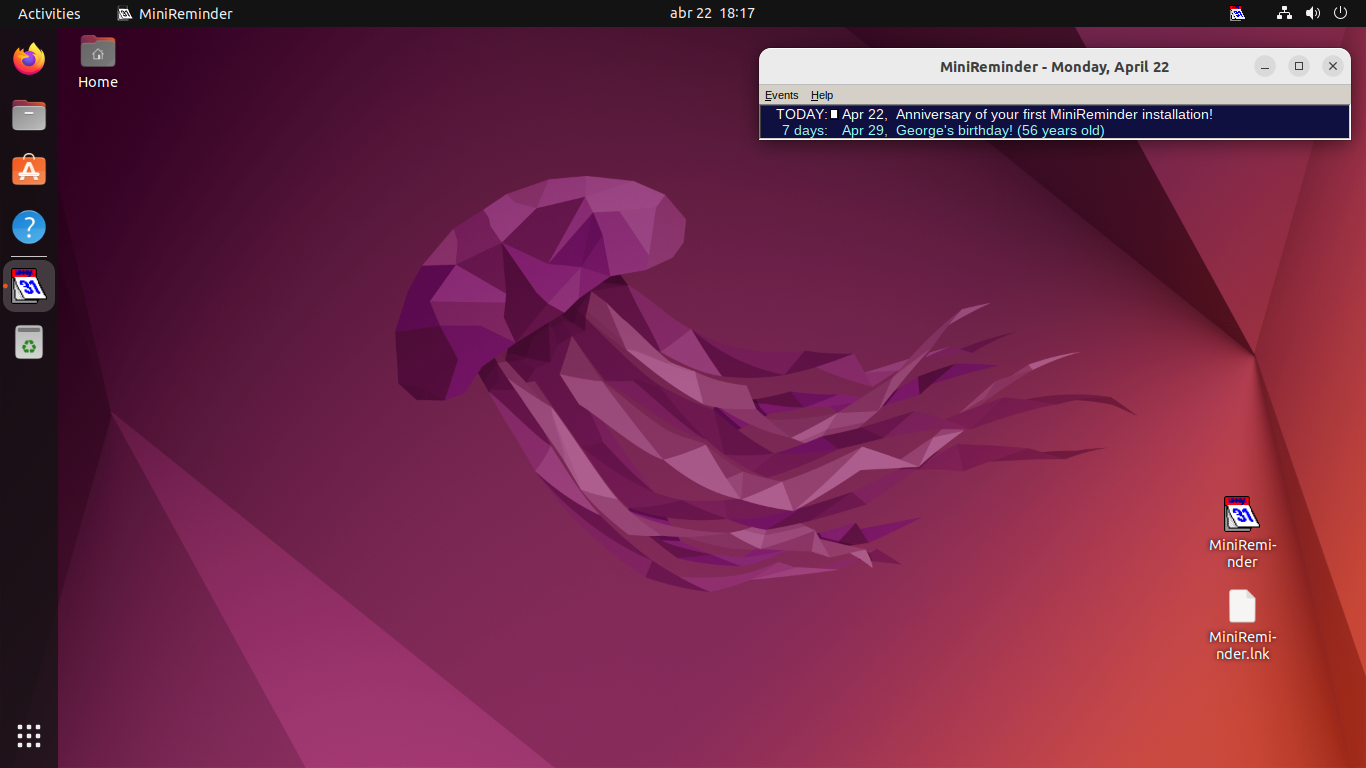
You can see both files from the Terminal as well:
The MiniReminder Windows installer automatically creates a Windows Desktop shorcut (a ".lnk" file) to launch the program. But when the same installer goes through Wine it creates two Desktop shortcuts: the Windows ".lnk" file and an extra Linux ".desktop" file (the ".desktop" extension is hidden by your Desktop Environment):
$ cd ~/Desktop
$ ls -la

total 16
drwxr-xr-x  2 jsmith jsmith 4096 Apr 22 19:59 .
drwxr-x--- 17 jsmith jsmith 4096 Apr 22 19:57 ..
-rwxr-xr-x  1 jsmith jsmith  324 Apr 22 19:59 MiniReminder.desktop
-rwxr-xr--  1 jsmith jsmith  788 Apr 22 19:59 MiniReminder.lnk
Once you've made sure that your Linux ".desktop" file works OK (it launches the MiniReminder program when clicked), you can delete the corresponding Windows ".lnk" file from your Linux Desktop, if you want.
In rare occasions the ".desktop" file doesn't work (it doesn't launch the MiniReminder program).
Since a Linux Desktop launcher is just a regular text file, you can edit it with your favourite text editor
to make sure it has the needed information (this page has a lot of useful information about it).
Following is an example "MiniReminder.desktop" file that worked in all the Linux distributions I tried (it assumes a "jsmith" Linux user and that MiniReminder was installed in the virtual "C:\Users\jsmith\" folder of Wine):
Following is an example "MiniReminder.desktop" file that worked in all the Linux distributions I tried (it assumes a "jsmith" Linux user and that MiniReminder was installed in the virtual "C:\Users\jsmith\" folder of Wine):
[Desktop Entry]

# Type of entry.
Type=Application

# Name of the application.
Name=MiniReminder

# Path to the folder in which the executable is run.
Path=/home/jsmith/.wine/dosdevices/c:/users/jsmith/MiniReminder

# Set environment variable and command line to execute MiniReminder using Wine.
Exec=env WINEPREFIX="/home/jsmith/.wine" wine C:\\\\users\\\\jsmith\\\\MiniReminder\\\\minireminder.exe

# Name of the icon file (may be a different file, check your "~/.icons" folder).
Icon=FB1E_minireminder.0

# Other keys.
Comment=MiniReminder
StartupNotify=true
StartupWMClass=minireminder.exe
STEP 4: Autostart MiniReminder upon login
According to the XDG Destop Entry Specification,
Linux Desktop Environments (DE) such as GNOME, Xfce, Cinnamon, KDE Plasma, etc can start programs automatically upon login by placing their launchers (".desktop" files) in specific folders.
Default autostart folders are (in order of preference):
Unfortunately, not all Desktop environments (DE) I tried could autostart MiniReminder using this method. On the other hand, many DE provide utilities to help you manage the programs you want to autostart every time you login.
If MiniReminder didn't autostart after copying your "MiniReminder.desktop" file into the autostart folder try any utility your DE provides to manage startup applications: go to your System Settings and look for "Startup Applications", "Session and Startup" or something similar.
Once in your DE Startup Applications utility, you will be able to see a list of programs that get launched on startup. To add or modify an entry from this list click the corresponding button and fill out the form, specifying the command you want to run as you would run it from Terminal (including full path names).
For example, recent Desktop Environments can launch ".desktop" files with the "gio" utility :
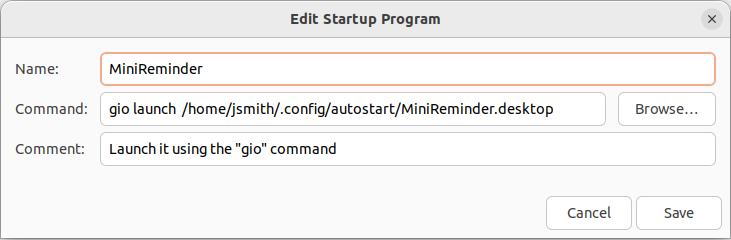
(tested on GNOME 42, on Xfce 4.18 and on KDE Plasma 5.27, all with gio 2.72)
Other Desktop Environments can launch ".desktop" files with "xdg-open":

(tested on Xfce 4.14)
Default autostart folders are (in order of preference):
- ~/.config/autostart (user-specific)
- /etc/xdg/autostart (system-wide)
$ cd ~/Desktop
$ cp MiniReminder.desktop ~/.config/autostart/
Remember to logout and to login again to check if this works.
Unfortunately, not all Desktop environments (DE) I tried could autostart MiniReminder using this method. On the other hand, many DE provide utilities to help you manage the programs you want to autostart every time you login.
If MiniReminder didn't autostart after copying your "MiniReminder.desktop" file into the autostart folder try any utility your DE provides to manage startup applications: go to your System Settings and look for "Startup Applications", "Session and Startup" or something similar.
Once in your DE Startup Applications utility, you will be able to see a list of programs that get launched on startup. To add or modify an entry from this list click the corresponding button and fill out the form, specifying the command you want to run as you would run it from Terminal (including full path names).
For example, recent Desktop Environments can launch ".desktop" files with the "gio" utility :
(tested on GNOME 42, on Xfce 4.18 and on KDE Plasma 5.27, all with gio 2.72)
Other Desktop Environments can launch ".desktop" files with "xdg-open":
(tested on Xfce 4.14)